
Each print mode contains a predefined set of settings created by a Printomize Color Specialist to ensure consistent results.
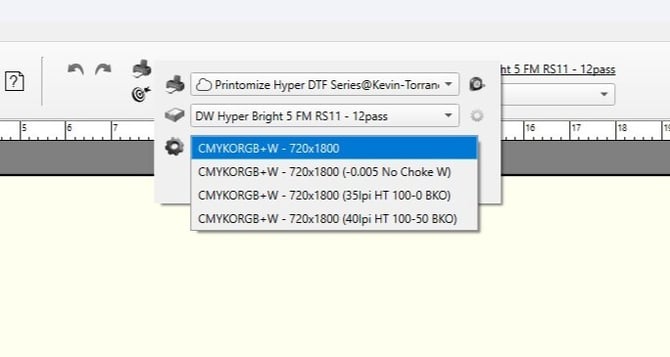
These modes determine how the printer handles:
- White ink generation
-
Image processing
-
Special effects such as knockouts or halftones
Print modes are selected in the Layout window before submitting a job to the RIP.
Important Behavior of Print Modes
A print mode applies to the entire artboard (gangsheet).
This means the selected mode affects every design placed in the layout.
You cannot apply different print modes to individual images within the same artboard.
If different processing is required, separate layouts should be created.
Common Print Modes
Different printers or workflows may include different modes, but the following are common examples.
Auto White Generation with Choke
This mode automatically generates the white ink layer used for DTF printing.
The choke setting slightly reduces the white underbase so it does not extend beyond the color layer.
A specialized configuration is used to prevent issues when designs contain white outlines or white text.
Example scenario:
-
A color image placed on top of white text
-
The system ensures the white underbase does not remove or choke the visible white elements
This mode is commonly used for general DTF printing workflows.
Knock-Out Mode
Knock-Out mode removes specific color areas from the design before printing.
This is often used to create a black knockout effect, which removes black from the image.
This mode typically includes:
-
Automatic white generation
-
Knockout processing for a specific color
This can help create softer feeling transfers so that you don't have a giant block of ink on the customer's garment.
Halftone Mode
Halftone mode converts the image into a halftone pattern.
This replaces solid color areas with a pattern of dots.
Halftones replace glow and gradient effects.
Halftone mode typically includes:
-
Halftone image processing
-
Automatic white generation
This mode is often used for stylized artwork or special print effects.
Combined Print Modes
Print modes can also be configured with multiple processing methods combined together.
Examples may include:
- Black Knockout + Halftone + White Generation
These combinations are created by Printomize Color Specialists to support specific workflows and printer configurations.
When to Change Print Modes
You may need to select a different print mode when:
-
Printing artwork that requires special effects
-
Running halftone-style prints
-
Using special knockout workflows
For most standard production jobs, the recommended default print mode should be used.
Related Articles
PrintFactory – Creating a Job in Layout
PrintFactory – Alignment and Nesting Basics
PrintFactory – Adjusting Image Size and Copies
PrintFactory – PrintFactory RIP Interface Overview