
The Alignment and Nesting panel in PrintFactory Layout helps organize artwork on the artboard before sending a job to the RIP.
These tools allow you to:
- Align multiple images evenly
- Arrange artwork for organized gang sheets
- Automatically nest designs to save film
- Control how artwork is positioned during automatic nesting
Using these tools correctly helps maximize film usage and maintain clean, organized layouts.
Alignment Tools
The Alignment buttons allow you to quickly reposition multiple selected images relative to each other.
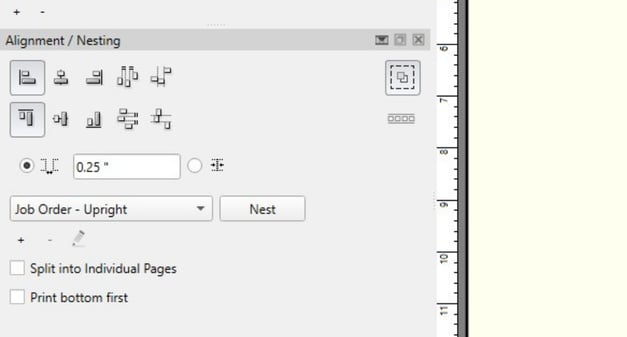
Common alignment actions include:
- Align: Left | Center | Right | Horizontal Distribute | Horizontal Attach
- Align: Top | Middle | Bottom | Vertical Distribute | Vertical Attach
These tools are useful when creating layouts where designs need to be:
- evenly spaced
- stacked vertically
- arranged in rows
- centered within the layout
How to Use Alignment Tools
- Select multiple images on the artboard
- Click the desired alignment button
- PrintFactory will reposition the selected images accordingly
Alignment tools do not automatically fill empty space on the film. They simply organize selected images based on their current positions.
Spacing Control
The Spacing field determines how much space PrintFactory leaves between designs when nesting.
Example: 0.25"
Spacing ensures:
- designs do not overlap
- there is room for cutting transfers
- adhesive powder does not connect between prints
Recommended Spacing for DTF
Most DTF workflows use: 0.20" – 0.30"
Printomize America systems typically use: 0.25"
Nesting Modes
The Nesting Mode dropdown determines how PrintFactory arranges designs when the Nest button is pressed.
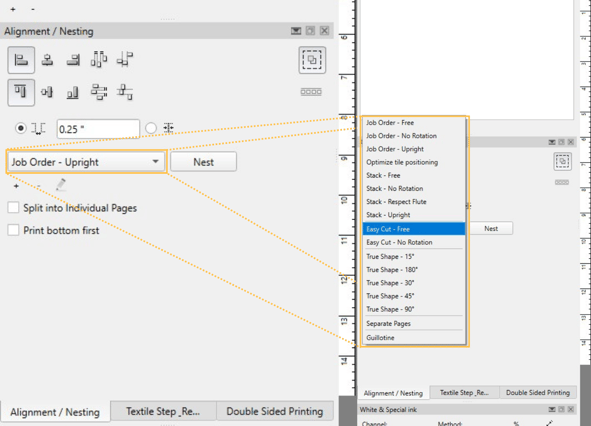
Nesting modes control:
- whether designs rotate
- how efficiently space is used
- how designs are ordered on the film
While several options exist, only a few are commonly used for DTF printing workflows.
Job Order – Upright
This is the most commonly used nesting mode.
Behavior
- Keeps designs in the same order as the Jobs panel
- Prevents designs from rotating
- Maintains consistent orientation for all artwork
Best Used When
- printing logos or text designs
- maintaining predictable layout order
- preparing organized gang sheets
This mode prioritizes layout consistency rather than maximum film efficiency.
Easy Cut – Free
This nesting mode focuses on making transfers easier to cut after printing.
Behavior
- Allows designs to rotate
- Arranges designs to reduce wasted film
- Groups designs more efficiently
Best Used When
- printing many smaller designs
- preparing gang sheets for manual cutting
Designs may appear rotated at different angles to maximize layout efficiency.
True Shape Nesting
True Shape nesting arranges designs based on their actual shape rather than their rectangular boundaries.
Behavior
- Allows designs to rotate
- Fits irregular shapes together more tightly
- Maximizes film usage
Best Used When
- printing complex or irregular shaped designs
- producing large production gang sheets
- minimizing wasted film
True Shape nesting often produces the most efficient layouts for high-volume printing.
Nest Button
After selecting a nesting mode and spacing value, click the Nest button to automatically arrange the artwork.
PrintFactory will:
- reposition the designs
- apply the selected nesting mode
- optimize layout spacing
This quickly prepares the gang sheet for printing.
Additional Options
Split into Individual Pages
When enabled, each job will be placed on its own layout page instead of combining them into a single gang sheet.
This option is rarely used in DTF workflows, where multiple designs are typically printed together.
Print Bottom First
This option changes the order in which designs are printed.
In most DTF workflows this setting is left disabled.
Recommended Settings for Most DTF Jobs
Typical starting configuration:
Spacing: 0.25"
Nesting Mode: Job Order – Upright
Switch to True Shape or Easy Cut when attempting to improve film efficiency or simplify cutting workflows.
Next Steps
PrintFactory – Creating a Job in Layout
PrintFactory – Adjusting Image Size and Copies
PrintFactory – Print Modes
PrintFactory – Managing the RIP Job Queue