
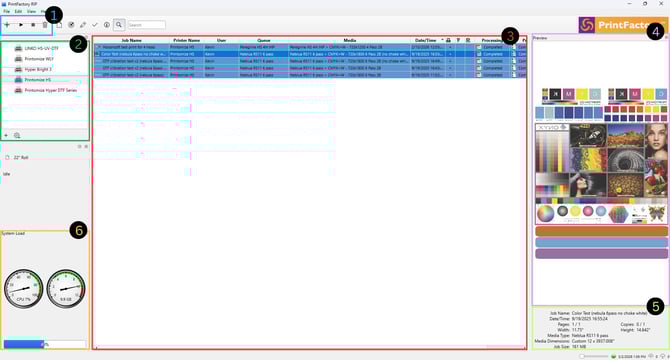
Section 1 – Main Action Buttons
The main action buttons control the most common operations in the RIP software.
-
Plus Symbol (+)
Opens the Layout window so you can prepare a new job.
-
Play Symbol
Starts the print job that is currently selected in the job queue.
-
Stop Symbol
Stops the processing of the selected job.
-
Delete Symbol
Deletes the selected job from the RIP queue.
Section 2 – Printers Connected to RIP
This section lists all printers currently connected to the RIP software.
From here you can:
-
View available printers
-
Select the printer you want to use
-
Confirm that the printer is connected
Always verify the correct printer is selected before opening Layout or starting a print.
Section 3 – Job Queue
The Job Queue displays all jobs currently in the RIP software.
This includes jobs that are:
-
Processing
-
Completed
-
Waiting to print
-
Ready to be reprinted
Selecting a job in the queue allows you to manage it using the action buttons.
Section 4 – Preview of Selected Job
The Preview panel displays a visual preview of the job currently selected in the queue.
This allows you to quickly confirm:
-
Artwork layout
-
Design orientation
-
Overall job appearance before printing
Section 5 – Job Details
The Job Details section provides information about the selected print job.
Typical information shown includes:
-
Job name
-
Date and time submitted
-
Number of pages
-
Media type
-
Job dimensions
-
File size
This information helps confirm you are printing the correct job.
Section 6 – Computer System Load
The System Load panel displays the current usage of the computer running the RIP software.
This includes:
-
CPU usage
-
Memory usage
-
Disk usage
Monitoring system load can help identify performance issues when processing large or complex print jobs.
Next Steps
-
PrintFactory - Managing the RIP jobs
-
PrintFactory - Layout Interface Overview
-
PrintFactory - Creating a Job in Layout