
Overview
The RIP Job Queue is where all print jobs appear after they are submitted from the PrintFactory Layout window.
From this screen you can:
-
start print jobs
-
stop active jobs
-
delete unwanted jobs
-
edit or inspect job settings
-
preview the gang sheet before printing
Managing the RIP queue allows operators to control which jobs print and in what order.
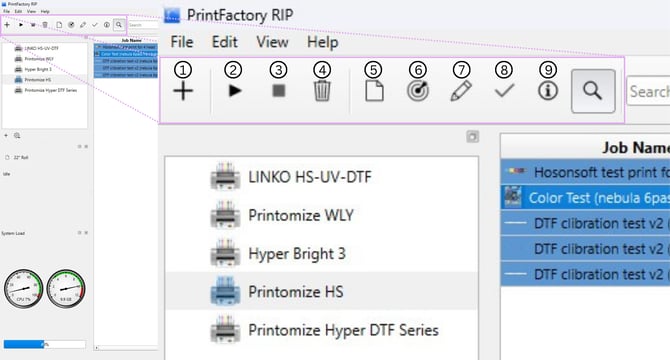
RIP Toolbar Controls
The numbered icons along the top of the RIP window control how jobs in the queue are managed.
Each button operates on the currently selected job in the queue.
1 – Add Job
The Add Job (+) button opens a new Layout window where artwork can be loaded and prepared for printing.
This allows users to create a new layout directly from the RIP interface.
Most workflows will involve opening Layout first, but this option provides a quick shortcut.
2 – Start Job
The Start Job (Play icon) begins printing the currently selected job.
Steps:
-
Select the desired job in the queue
-
Click Start Job
The RIP will begin sending the job data to the printer.
Before starting a job, confirm:
-
the correct printer is selected
-
the correct job is highlighted
-
the printer is ready to receive data
3 – Stop Job
The Stop Job (Square icon) stops the selected job if it is currently processing or printing.
This may be used when:
-
the wrong job was started
-
print settings were incorrect
-
the printer needs to be paused
Stopping a job will interrupt the print process.
4 – Delete Job
The Delete Job (Trash icon) removes the selected job from the RIP queue.
Deleting unused jobs helps prevent accidental reprints and keeps the queue organized.
Steps:
-
Select the job in the queue
-
Click Delete Job
5 – Change Media
The Change Media button allows adjustment of the media settings associated with the selected job.
Media settings may include:
-
film width
-
media configuration
-
media profiles
These settings are typically configured during printer setup and rarely need adjustment during normal production.
6 – Calibrator
The Calibrator button opens PrintFactory’s calibration tools.
These tools are used for:
-
color calibration
-
media profiling
-
maintaining consistent color output
Calibration is usually performed by a Printomize color specialist or trained technician.
7 – Edit Job
The Edit Job button allows modification of the selected job’s processing settings.
Examples may include:
-
job configuration
-
processing parameters
-
print settings
Most layout adjustments should be made in PrintFactory Layout before submitting the job, but this option allows limited adjustments inside the RIP.
8 – Approve Job
The Approve Job button marks a job as approved for printing.
Some production workflows require approval before jobs can be processed or printed.
In many DTF workflows this feature may not be actively used.
9 – Job Info
The Job Info button displays detailed information about the selected job.
Information may include:
-
job name
-
submission date and time
-
print dimensions
-
media settings
-
job file size
This is useful when verifying job details before starting production.
10 – Preview
The Preview button opens a preview of the selected job.
This allows operators to verify:
-
the correct artwork
-
gang sheet layout
-
orientation of designs
-
color channels
Always verify the preview before starting the print.
Job Queue
The Job Queue lists every job currently loaded in the RIP software.
Jobs may appear in different states such as:
-
processing
-
ready
-
completed
Selecting a job in the queue allows the toolbar buttons above to control that specific job.
System Performance Indicators
The lower portion of the RIP interface displays system performance indicators including:
-
CPU usage
-
memory usage
-
disk usage
Monitoring these values can help identify performance issues when processing large or complex jobs.
Best Practices
To maintain an organized RIP workflow:
-
verify the correct job before pressing Start
-
delete unused jobs from the queue
-
use clear job names when submitting layouts
-
preview the gang sheet before printing
Following these practices helps prevent production mistakes.
Next Steps
Continue through the PrintFactory workflow:
PrintFactory – Creating a Job in Layout
Learn how to load artwork and prepare layouts before sending them to the RIP.
PrintFactory – Adjusting Image Size and Copies
Control image size and the number of designs on the gang sheet.
PrintFactory – Alignment and Nesting Basics
Organize artwork efficiently on the layout.
PrintFactory – Print Modes
Understand how print modes affect white ink generation and processing.