
PrintFactory Layout Overview
- Jobs Section - in blue
- Alignment and Nesting - in red
- Printer, Printer driver, and Print Mode - in orange
- Job Name and send button - in green
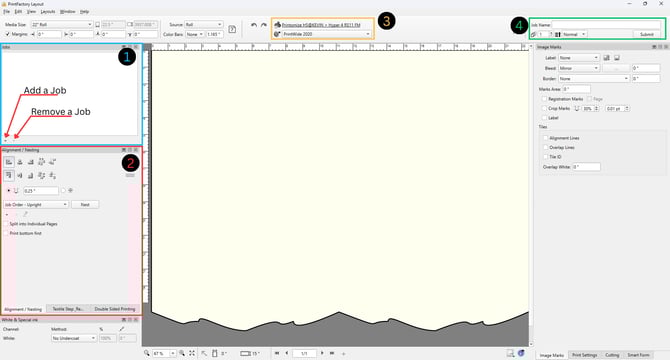
Section 1 – Jobs Section
The Jobs section displays all images currently loaded into the layout.
Here you can:
-
View all artwork included in the job
-
Organize the print order
-
Add or remove images
Adding or Removing Jobs
Use the plus (+) button to add images to the layout.
Use the minus (–) button to remove selected images.
This section controls what artwork is available to be arranged on the artboard.
Section 2 – Alignment and Nesting
The Alignment / Nesting panel allows you to position and automatically arrange your artwork.
Alignment Tools
Here you will find:
-
Buttons to evenly distribute images
-
Alignment tools for spacing and positioning
-
Rotation and arrangement controls
These tools help create clean, organized layouts before printing.
Nesting Options
The Nesting dropdown menu allows PrintFactory to automatically arrange artwork according to different layout strategies.
Two commonly used nesting modes:
Job Order – Upright
-
Keeps artwork in the same order as shown in the Jobs section
-
Maintains upright orientation
-
Best for consistent artwork direction
Easy Cut – Free
-
Automatically rearranges and rotates artwork
-
Optimizes space usage
-
Makes manual cutting easier after printing
After choosing your nesting style, click the Nest button to apply it.
Section 3 – Printer and Print Modes
This section allows you to select:
-
Printer
-
Print Driver
-
Print Mode
- Reference Profile (this is always PrintWide2020)
It is important to verify these settings every time you open a new Layout window to ensure:
-
Correct printer is selected
-
Proper media profile is active
-
Intended print mode is chosen
Incorrect settings here can affect ink usage, color output, and production workflow.
Section 4 – Job Name and Submit Button
The Job Name field allows you to label the file being sent to the RIP.
Using clear job names helps:
-
Track production
-
Identify reprints
-
Avoid sending incorrect files
Once everything is confirmed:
✔ Click Submit to send the job to the RIP for processing.
If you do not click Submit, the job will not print.
Quick Pre-Submit Checklist
Before clicking Submit:
-
✔ All artwork loaded correctly
-
✔ Nesting applied
-
✔ Correct printer selected
-
✔ Correct print mode selected
-
✔ Job name entered
Next Steps
Continue through the PrintFactory workflow:
PrintFactory – Creating a Job in Layout
Learn how to load artwork and prepare layouts before sending them to the RIP.
PrintFactory – Adjusting Image Size and Copies
Control image size and the number of designs on the gang sheet.
PrintFactory – Alignment and Nesting Basics
Organize artwork efficiently on the layout.
PrintFactory – Print Modes
Understand how print modes affect white ink generation and processing.