
When preparing artwork in PrintFactory Layout, you may need to adjust the size of an image or the number of copies printed on the gangsheet.
These controls are located in the top left area of the Layout window and apply only to the currently selected job in the Jobs panel.
The image below highlights where these controls are located.
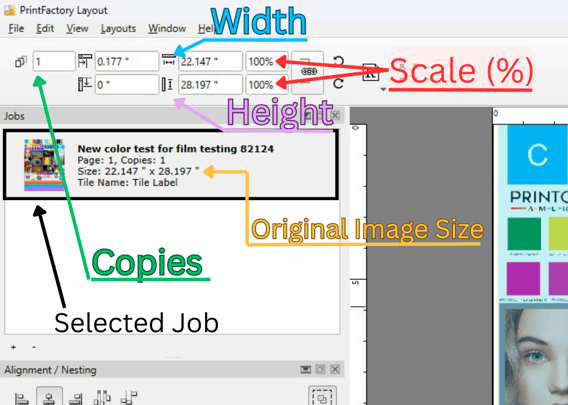
Important Concept: Selected Job
All size, scale, and copy adjustments apply only to the currently selected job.
To change settings for a design:
-
Click the design inside the Jobs section
-
The job will highlight
-
Any changes made to Width, Height, Scale, or Copies will apply to that selected job
Adjusting Image Width and Height
You can manually set the exact size of your artwork using the Width and Height fields.
Steps:
-
Select the job in the Jobs panel
-
Enter the desired value in the Width field
-
Enter the desired value in the Height field
PrintFactory will resize the artwork on the layout accordingly.
This is useful when:
-
Matching a specific transfer size
-
Preparing designs for a known garment placement
-
Maintaining consistent sizing across multiple prints
Using Scale (%)
The Scale (%) control resizes the image proportionally based on its current dimensions.
Example:
-
100% = original size
-
50% = half size
-
200% = double size
This method is useful when:
-
Quickly enlarging or shrinking artwork
-
Maintaining proportional resizing without manually adjusting both width and height
Creating Multiple Copies
The Copies field determines how many duplicates of the selected job will appear in the layout.
To create additional copies:
-
Select the job in the Jobs panel
-
Change the Copies value
-
PrintFactory will automatically duplicate the image on the artboard
This is commonly used when printing multiple identical transfers in one run.
Original Image Size
The Original Image Size displayed in the Jobs panel shows the native dimensions of the imported artwork file.
Important notes:
-
This value does not change when resizing the artwork
-
It serves as a reference to the file’s original dimensions
This helps you track how much the image has been scaled relative to its source file.
Additional Ways to Resize Images
In addition to entering values manually, you can also resize artwork directly inside the layout.
This includes:
-
Dragging the image corners in the artboard to resize visually
-
Using Alignment and Nesting tools to arrange multiple designs efficiently
For more details on these tools, see:
PrintFactory – Alignment and Nesting
Next Steps
Continue learning the PrintFactory workflow:
-
PrintFactory – Creating a Job in Layout
-
PrintFactory – Alignment and Nesting
-
PrintFactory – Print Modes Explained
-
PrintFactory – Managing the RIP Job Queue
These articles cover the rest of the workflow from preparing artwork to sending jobs to print.